
Release notes: Web app 6.20.0 · Mobile app 6.9.0
17 Nov 2026
Sign-in security update
This update makes signing in to TranzMate more secure. Administrators can now set a minimum sign-in requirement for their whole company. Users can choose how they receive their sign-in code: by email, SMS or an authenticator app. Everyone can sign in with a passkey, using their fingerprint, face or device PIN instead of a password.
These changes apply on the TranzMate website and in the iOS and Android apps.
Where you'll see the changes
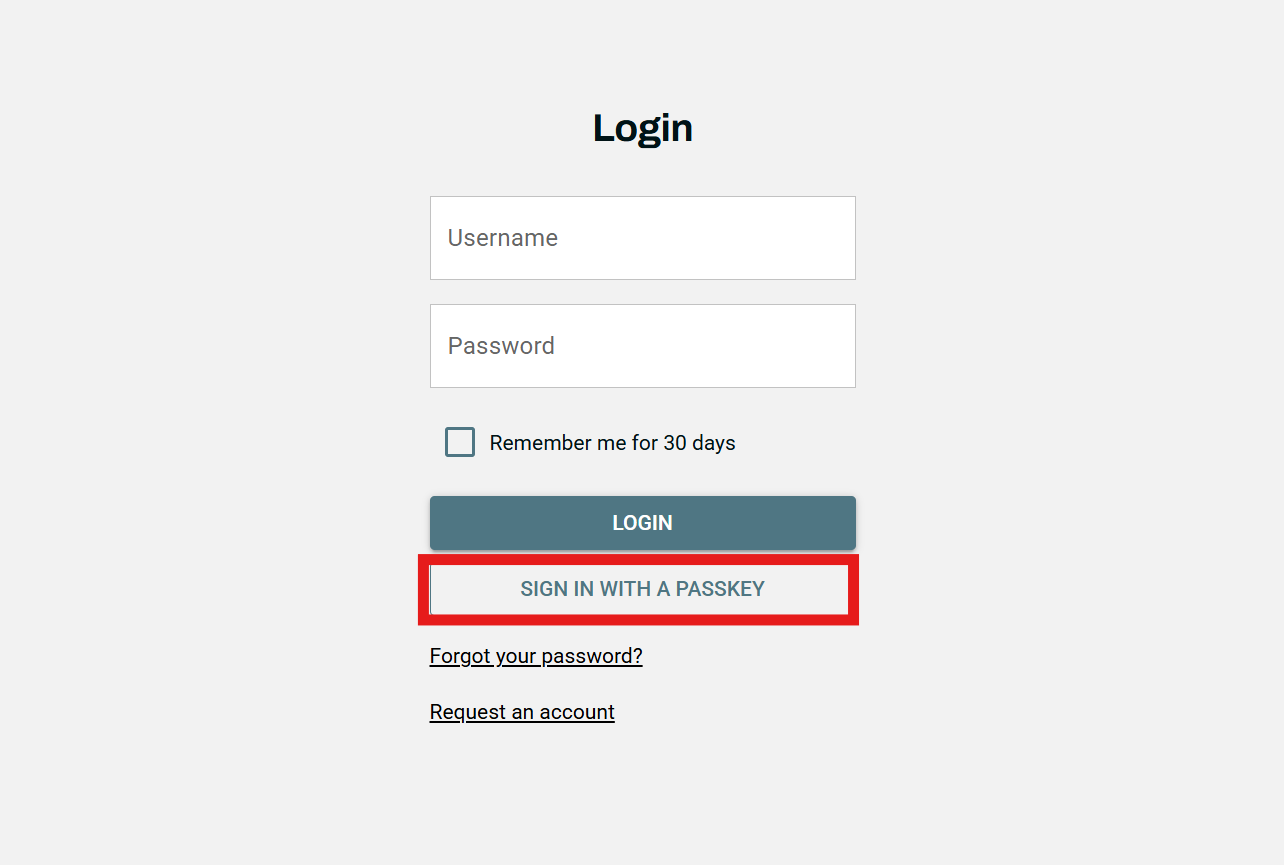
On the login screen
- A new Sign in with a passkey button sits below the Login button.
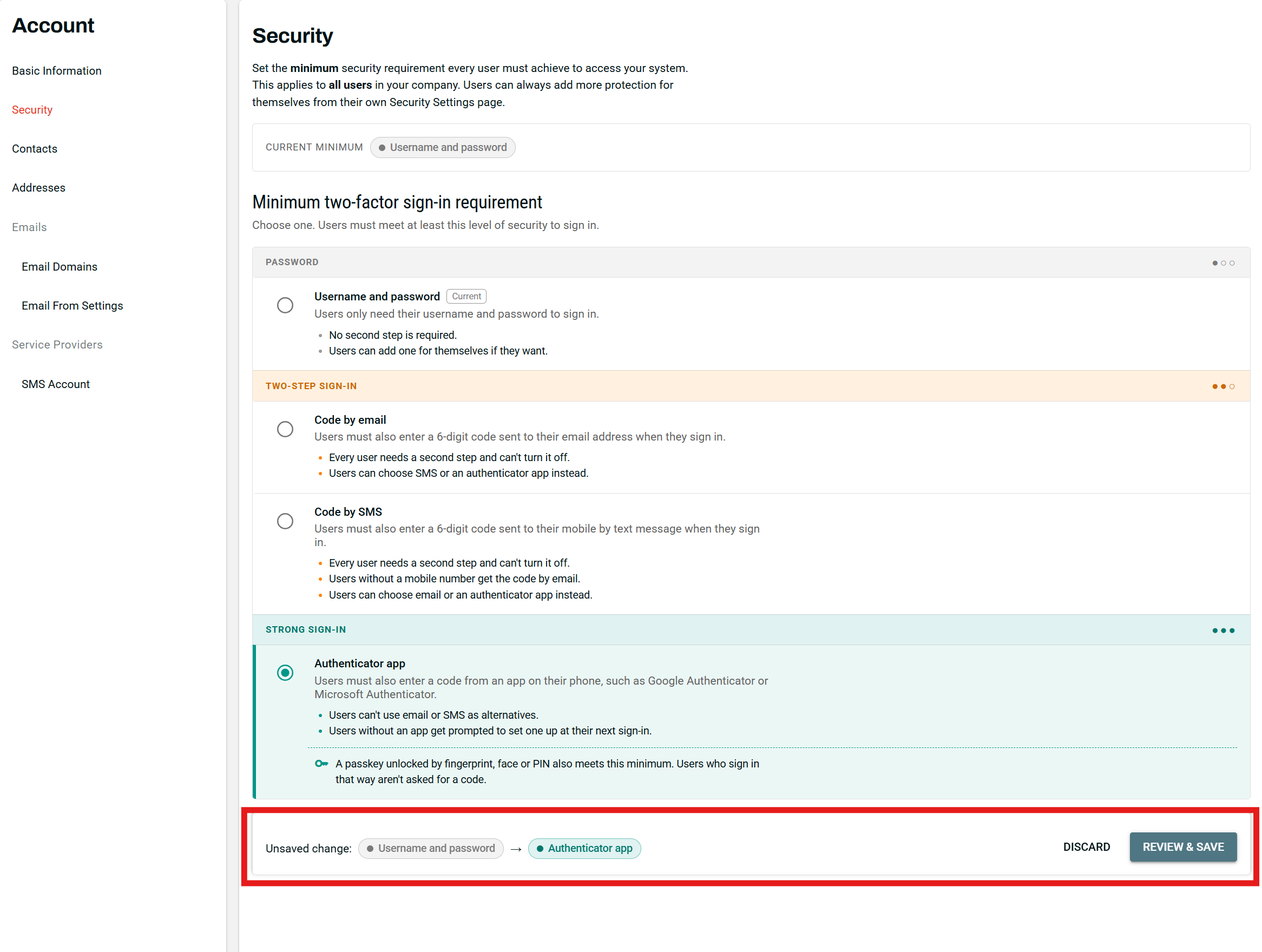
For administrators: Admin → Account → Security
- A new Security section in the Account tab, where administrators set the company-wide minimum for two-factor authentication.

- Changes are staged before they're saved. A banner at the bottom of the page flags the staged change, with Discard and Review & save buttons.
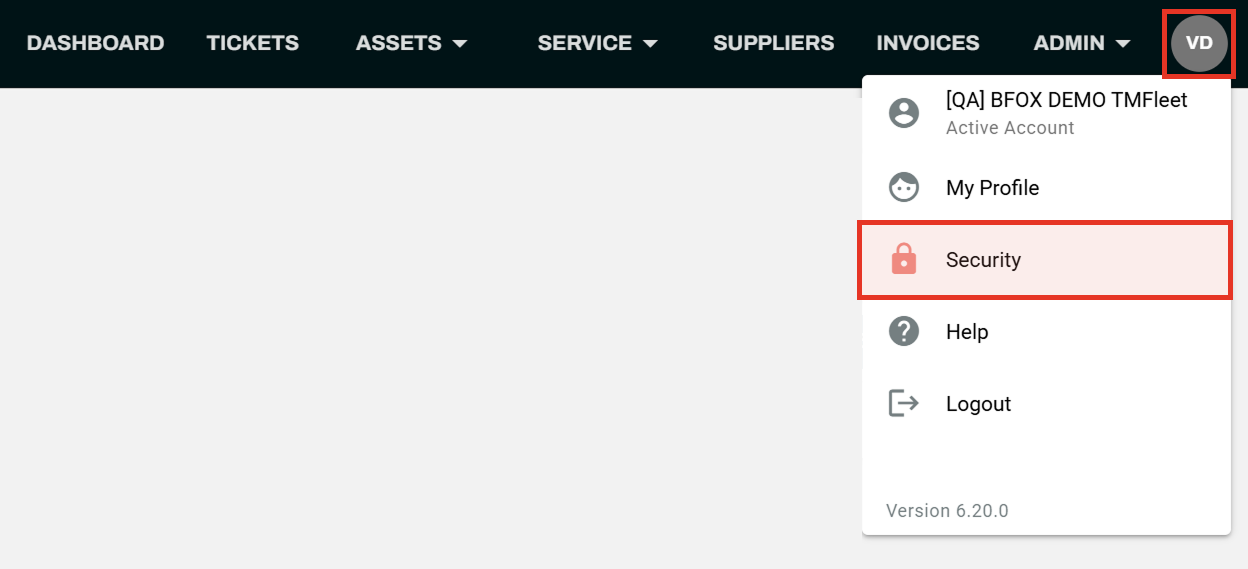
For users: your Security page
Open Security from your profile menu to set your personal two-factor preference.
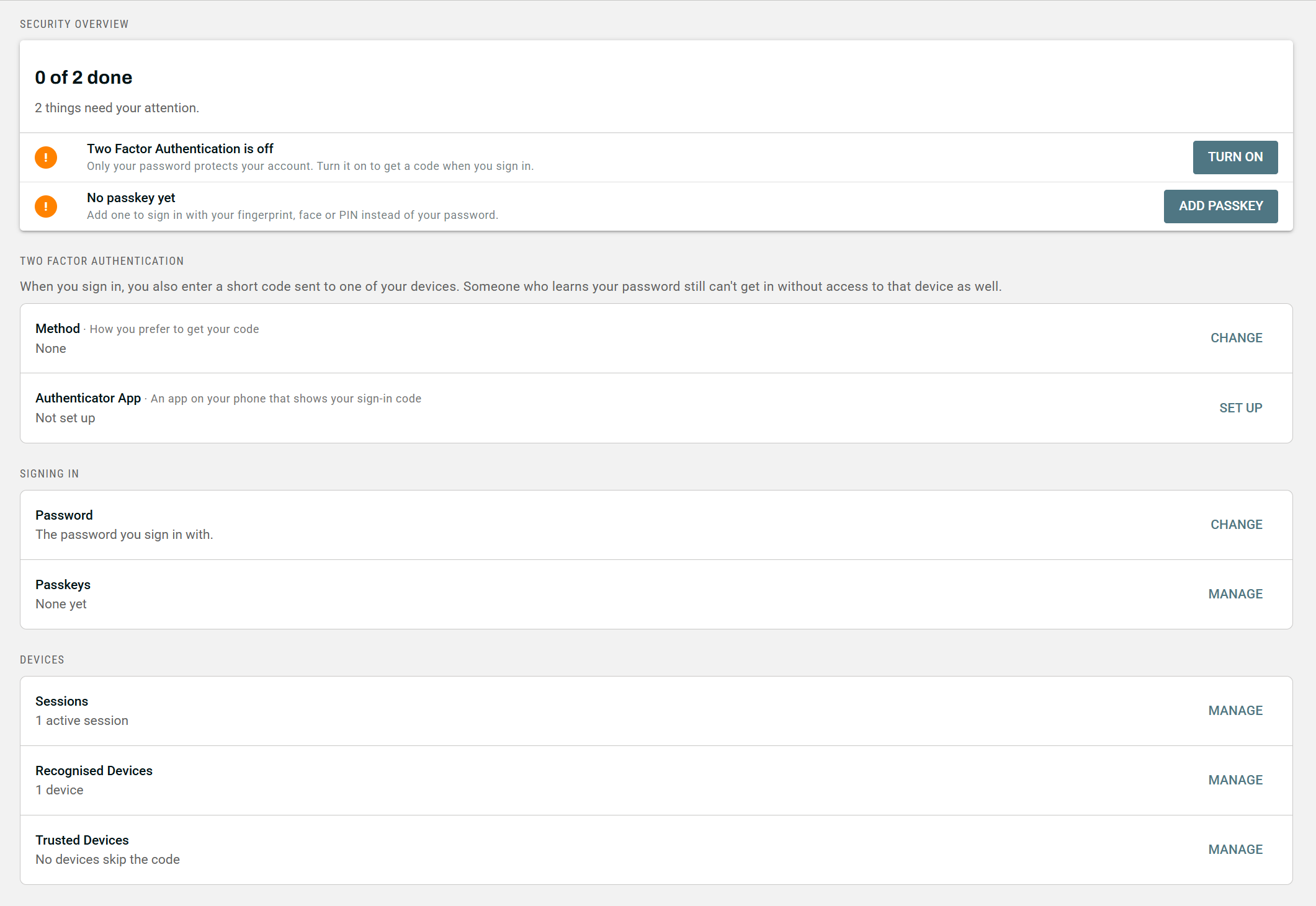
- Security Overview lists the steps you still need to action, with a button to complete each one.
- Two Factor Authentication lets you choose or change your method and set up an authenticator app.
- Signing in lets you change your password and manage your passkeys.
- Devices shows your signed-in sessions, which devices are recognised, and which are trusted to skip the code for 30 days.
For administrators: set your company's minimum sign-in requirement
A new Security page under Admin → Account → Security sets the minimum sign-in requirement for every user in your company. Employee admins, and system admins with the Manage Settings permission, can open it.
| Level | Option | What your users get |
|---|---|---|
| Password | Username and password | No second step required. Users can still turn one on for themselves if they choose. |
| Two-step sign-in | Code by email | A 6-digit code by email at each sign-in. |
| Two-step sign-in | Code by SMS | A 6-digit code by text message. Users with no mobile number get it by email. |
| Strong sign-in | Authenticator app | A code from an authenticator app on their phone. Users who haven't set one up must do so at their next sign-in. |
Changes are confirmed before they apply. Picking an option stages it, and a banner at the bottom of the page flags the change with Discard and Review & save buttons. Choose Review & save to see what will change for your users, tick the confirmation box, then Apply to all users.

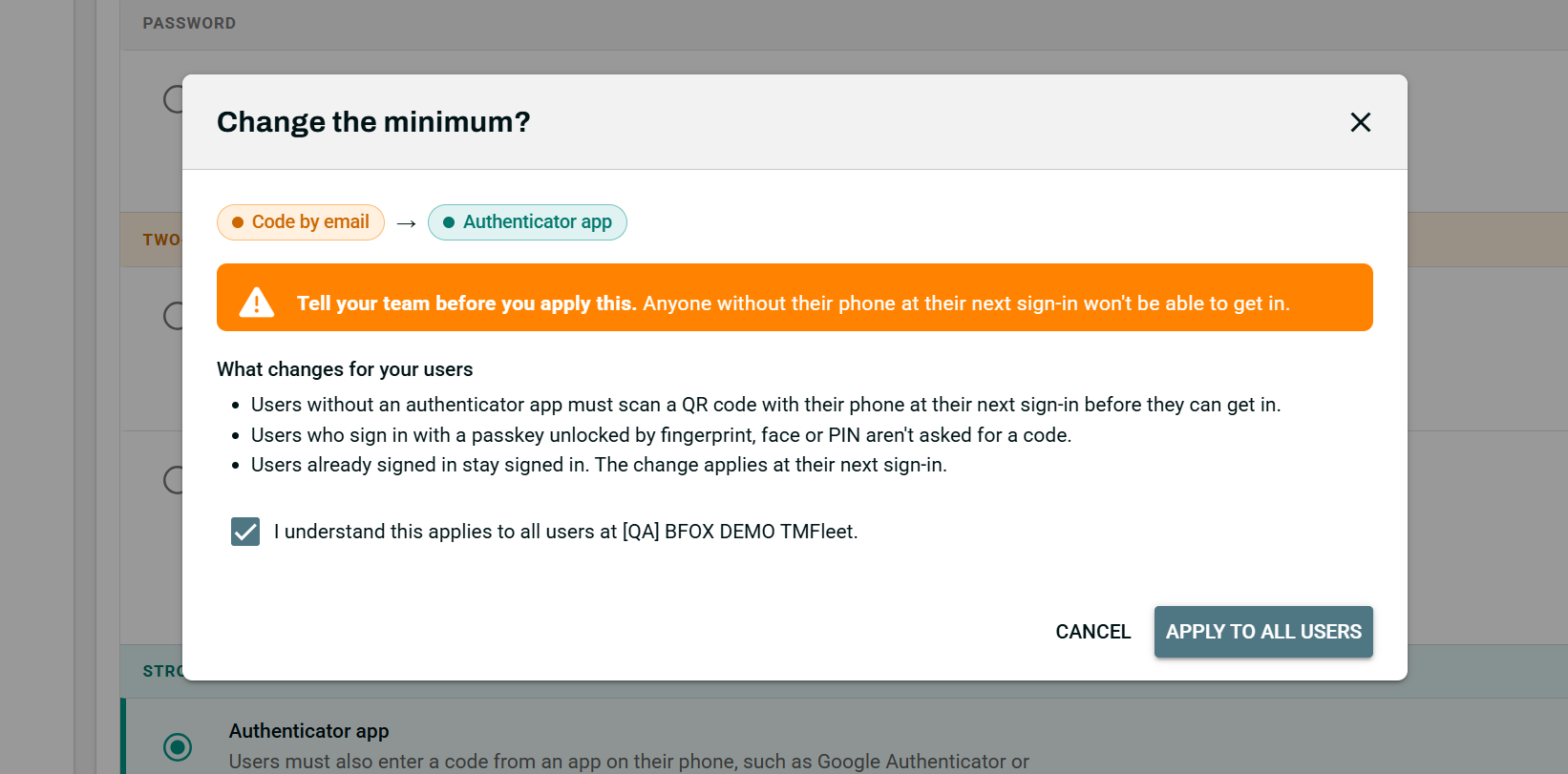
Signed-in users aren't interrupted. A new requirement applies at each user's next sign-in.
Tell your team before you move to Authenticator app. Anyone without their phone at their next sign-in won't be able to get in.
Trusted devices don't skip authenticator setup. When you raise the minimum to Authenticator app, users without one must set it up at their next sign-in, even on a device they've trusted.
Lowering the minimum doesn't change users' own settings. Anyone who has set up an authenticator app, including users who were required to, keeps getting authenticator codes. They can change their method on their Security page.
Check shared logins before you raise the minimum. If several people share one login, such as drivers sharing a single account, the requirement applies to all of them. Every person using that login would need access to the code or authenticator app.
New companies start at Username and password. Code by SMS needs your company's SMS module turned on.
For everyone: choosing how you get your code
If your company requires a second step, you'll be asked for a 6-digit code after your password. You can choose how that code reaches you. If your company doesn't require a second step, you can still turn one on for yourself. It's optional and adds extra protection to your account. Your choice applies wherever you sign in: the TranzMate website and the iOS and Android apps.
- Email or SMS: the code arrives in your inbox or as a text. Type or paste it, and it signs you in on the sixth digit. On phones, the code can fill in from Mail or Messages.
- Authenticator app: open Google Authenticator, Microsoft Authenticator, Apple Passwords or a similar app and enter the code it shows. Setup takes a minute: scan a QR code or copy a setup key, save your recovery codes, then enter a code to confirm.
- Recovery codes: when you set up an authenticator app you get 10 one-time recovery codes. If you don't have your phone, choose Sign in another way → Use a recovery code. Keep them somewhere safe.
- Trust this device: tick "Don't ask for a code on this device for 30 days" to skip the code on a device you use often. You can revoke trusted devices at any time.
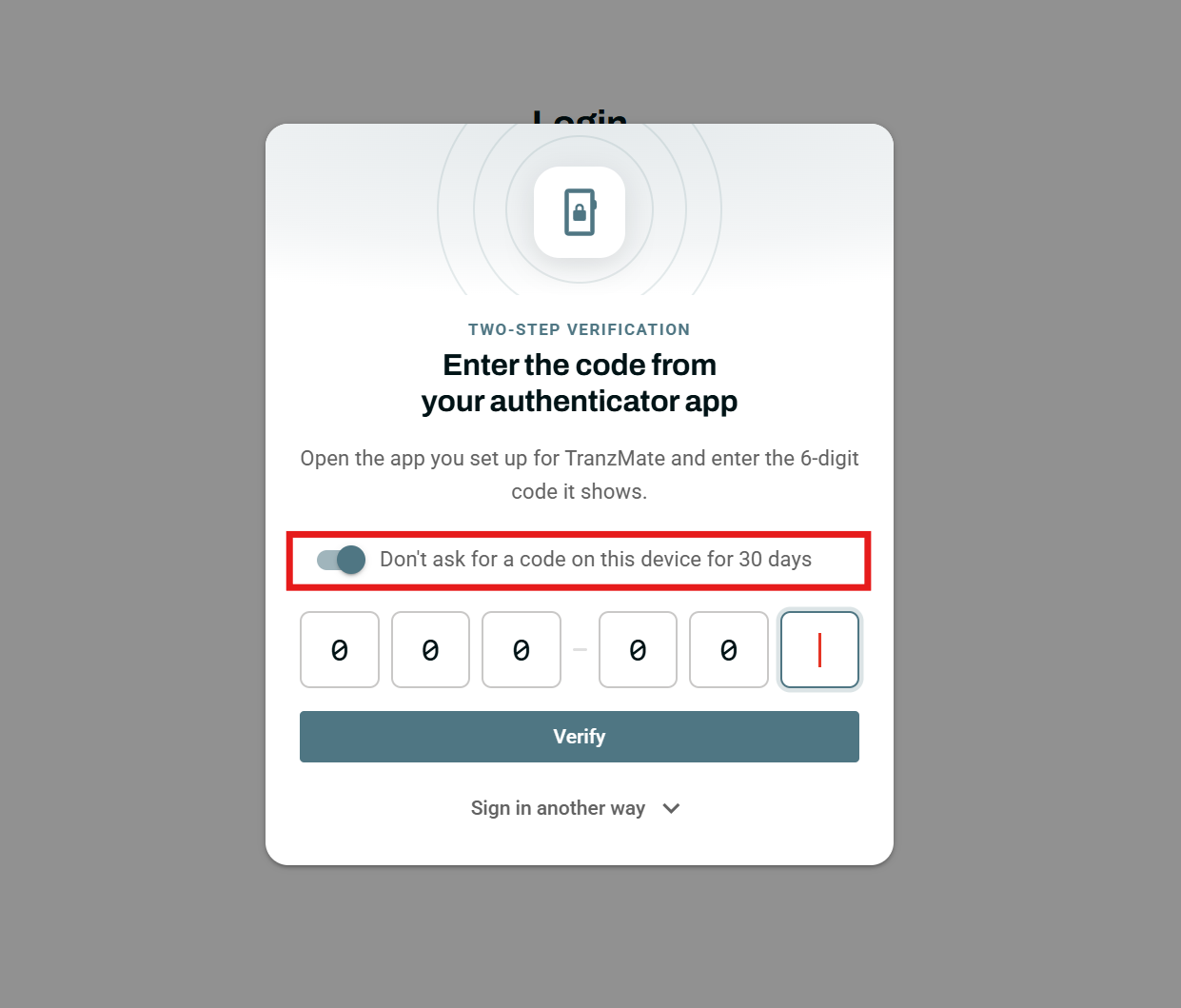
Set your preferred method on your Security page. Any method that meets your company's minimum can be your preference. For example, you can get codes from an authenticator app even if your company only requires email codes.
Passkeys: sign in with your fingerprint or face
A passkey lets you sign in with your fingerprint, face or device PIN, with no password to type. Because your device checks it's you, a passkey sign-in also skips the 6-digit code, even if your company requires an authenticator app.
- Add one: after you sign in with your password, TranzMate offers to create a passkey. Choose Create a passkey, or add one later from your Security page. You can also choose Skip for now or Don't ask again on this device.
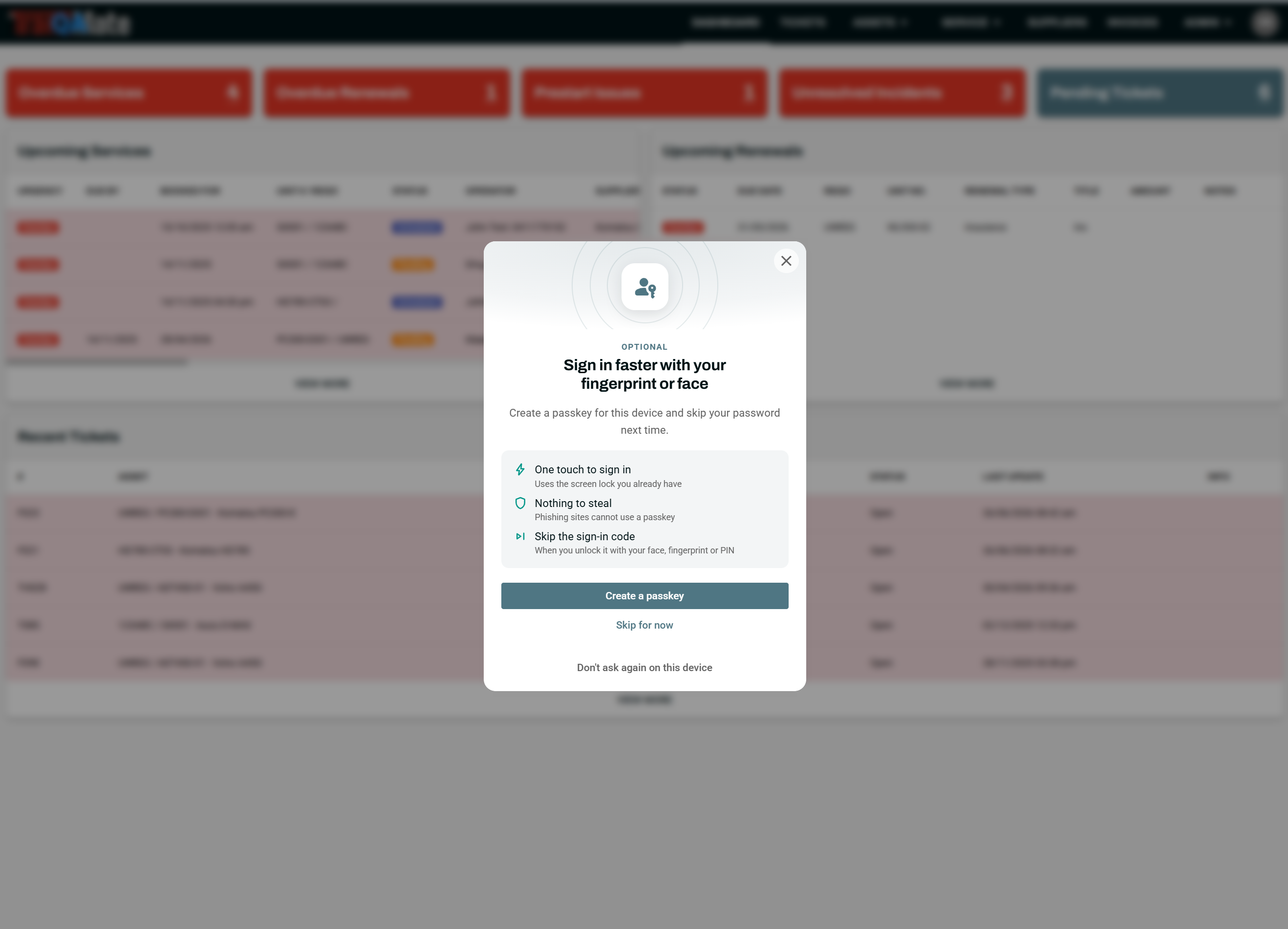
- Sign in with one: choose Sign in with a passkey on the login page, or pick your passkey from the suggestions under the Username field.
- Use it across devices: passkeys saved to iCloud Keychain, Google Password Manager or password managers such as 1Password and Bitwarden sync to your other devices. A passkey made in Safari works in the iOS app, and one made in Chrome works in the Android app.
- Use your phone with a computer: on a computer without your passkey, choose to use a phone and scan the QR code. Bluetooth needs to be on for both.
Passkeys work in current versions of Chrome, Edge, Safari and Firefox, and on iPhones with iOS 17.4 or later and Android phones with Android 9 or later.
Your new Security page
Open Security from your profile menu on the TranzMate website to manage how you sign in.
| Area | What you can do |
|---|---|
| Security Overview | See the steps you still need to action, with a button to complete each one. |
| Two Factor Authentication | Choose your sign-in method, set up an authenticator app, and generate new recovery codes. |
| Signing in | Change your password, and add, rename or delete passkeys. |
| Devices | See which browsers and apps you're signed in on and which devices are recognised, and sign any of them out. See which devices are trusted to skip the code for 30 days, and revoke them. |
Changing any of your security settings asks you to confirm it's you first, using your chosen two-factor method. If you haven't turned on a two-factor method, you'll be asked for your current password instead.
In the iOS and Android apps
- Faster passkey sign-in: if you have a passkey saved, the app offers it as soon as it opens on the login page. If you don't, nothing pops up.
- Authenticator setup on your phone: on iPhone you can add the code straight to your saved TranzMate login in Apple Passwords. On Android, Open in authenticator app adds the account to your authenticator in one tap. You can also copy the setup key.
- Codes and Switch System: code prompts, recovery codes and trusted devices work the same as on the website.
- Manage settings on the website: the apps don't have a Security page. Use the TranzMate website to change your method, manage passkeys or review your devices.
Good to know
| Rule | Value |
|---|---|
| Code length | 6 digits |
| Email and SMS codes expire after | 5 minutes |
| Resends per sign-in | 3 (not available for authenticator apps) |
| Wrong codes before a lockout | 10, then locked for 15 minutes |
| Trusted device skips the code for | Up to 30 days |
| Recovery codes issued | 10, each usable once |
Switching companies may ask for a code. You're only asked for a code when you use Switch System to move into a company with a stricter requirement. If that company requires an authenticator app and you don't have one, you'll be asked to set one up. Cancelling keeps you where you were.